Vehicle Collection
The Vehicle collection contains data on all vehicles in the city and their shared settings.

Note
FMOD plugin for sounds should be installed.
How To
Add To Collection
Vehicles can only be added to the collection using the Car Prefab Creator tool.
Override Settings
Steps
Tick on Show Custom Data.

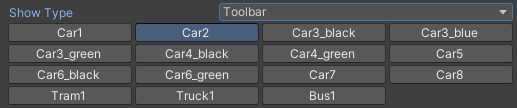
Change Show Type to Toolbar.

Select desired vehicle.
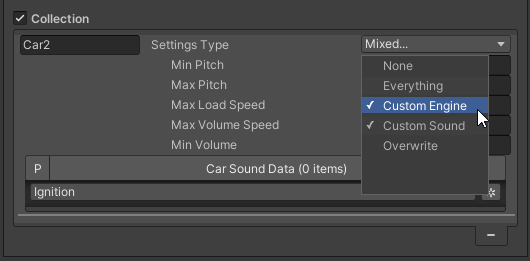
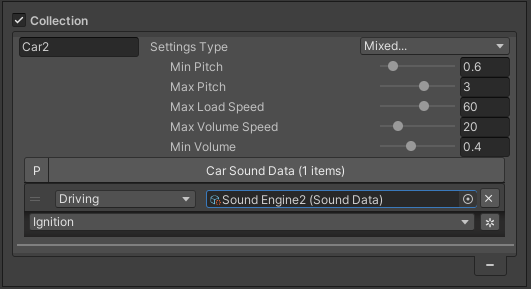
Select the Settings Type to Custom Engine and Custom Sound (if you want to override both).
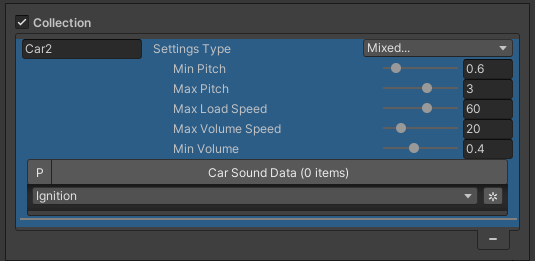
Customize custom sound settings.
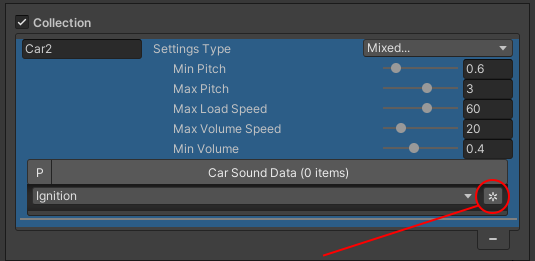
Add custom sounds.
Entity Conversion
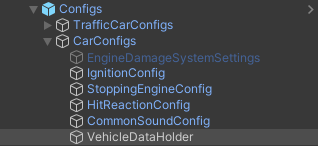
Vehicle collection assigned to the VehicleDataHolder and converted in the EntitySubScene subscene.
Unique ID
Car Model
Note
You can change the CarModel name at any time in the Collection tab.
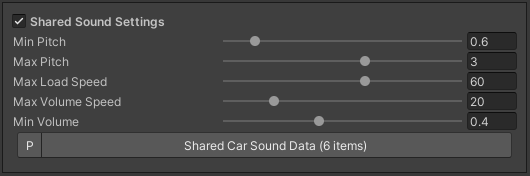
Sound Settings
Sounds
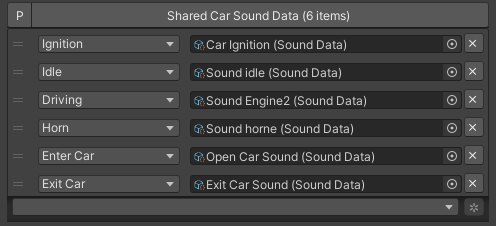
Ignition : playback during engine start of the vehicle.
Idle : idle sound of the vehicle.
Driving : plays when pedestrian or player driving the vehicle.
Horn : plays when the horn of the vehicle is active.
Enter car : plays when pedestrian or player enters vehicle.
Exit car : plays when pedestrian or player exits vehicle.