Player Car
Common Info
Each player car only works in Hybrid custom physics type & consists of 2 parts: DOTS entity is handled by DOTS systems & Monobehaviour hybrid skin (required for camera tracking & npc car layout) that follows the binded DOTS entity.
Player hybrid skin car should have following components:
Player Actor : camera tracking component.
PlayerNpcCarBehaviour : logic of the NPC shooting from the car.
CarSlots : stores the NPC data that is in the car (Npcs sitting in the car are taken from the PlayerNpcCarFactory).
Note
Look at PlayerCarSkinBase prefab example.
Hybrid DOTS
Player vehicle physics handled by DOTS systems.
The hybrid skin follows the DOTS entity.
How To Create
Open Car Prefab Creator & set Car type to Player in the Prefab tab.
Set Player simulation type to Hybrid DOTS in the Prefab tab.
Make sure Player simulation type is set to Hybrid DOTS in the player car settings (make sure that config on the subscene has the same value).
Create a vehicle using the Car Prefab Creator tool.
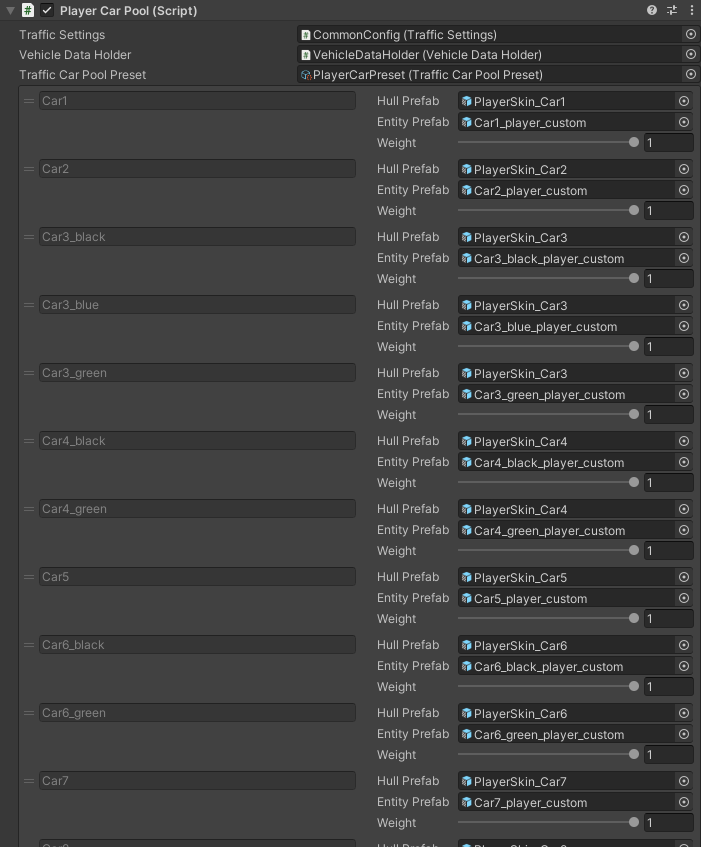
Create prefab variant from the PlayerCarSkinBase prefab & assign to Player Car Pool according to the vehicle.
Customize the car slots in the created prefab if you plan to make the NPC’s shooting option from the car [optional step].
Once all the steps have been completed, reimport subscene.
Hybrid Mono (experimental)
Player vehicle physics handled by custom user’s Monobehaviour physics plugin.
Unlike the Hybrid DOTS, the entity following & presents collider for DOTS world without mesh representation.
The DOTS entity collider processes the collision with the DOTS physics world & adds impulses to the vehicle’s Rigidbody according to the calculated impulse.
- List of vehicle controllers from the Asset Store that can be used for (e.g.)
Note
To make the vehicle work, the main scene should have default Unity colliders (read more about PhysicsShape Transfer tool).
Processing a combination of DOTS physical world and the default physical world at the same time may require additional CPU resources.
How To Create
Open the Car Prefab Creator & set Car type to Player in the Prefab tab.
Set Player simulation type to Hybrid mono in the Prefab tab.
Set the Hybrid mono in the Player car settings config (make sure that config on the subscene has the same value).
Drag & drop your desired prefabs into the Prefabs field.
Click the Scan button.
Customize Save settings in the Save tab.
In the Prefab Info tab, enter the vehicle ids (ids should match the traffic cars ids if you want to make option enter & exit for the player npc).
Click the Create button.
Ensure that the bounds of the entities created match the prefabs you have selected.
Input for the player vehicle is implemented according to your vehicle controller plugin.
The input enable & disable for the car when the player’s npc exits & enters the car should be implemented in the PlayerInteractCarService.cs in the EnterCar & ExitCar methods.
Once all the steps have been completed, reimport subscene.
Player Car Pool
Where To Find
In the scene:
Hub/Pools/Car/PlayerCarPool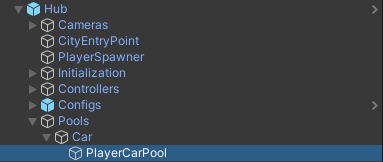
How To Use
Player cars spawned by PlayerCarSpawner.