Traffic Node
Traffic node is a set of traffic node entities that are connected to other traffic node entities by a :ref:`path <path>
Settings
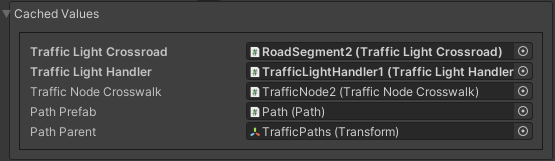
Cached
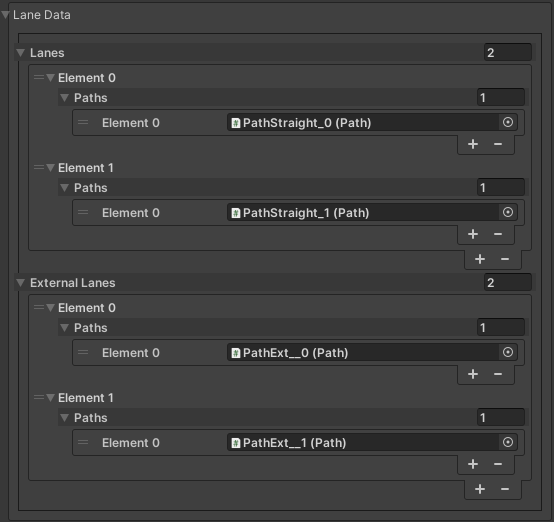
Lane Data
Settings
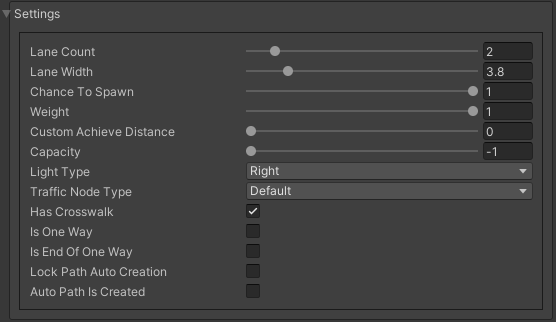
- Light type:
Right : right-hand lanes have traffic lights.
Left : left-hand lanes have traffic lights.
Right and left : right and left lanes have traffic lights.
- Traffic node type:
Default
Parking : node where cars are parked (read more parking states).
Traffic public stop : node where public traffic stops to pick up passengers.
Destroy vehicle : node where the vehicle entity is destroyed (useful for nodes outside the map).
Traffic area : TrafficArea node.
Idle : node where the vehicle is idling.
OneWay Node Info
Oneway node description example:
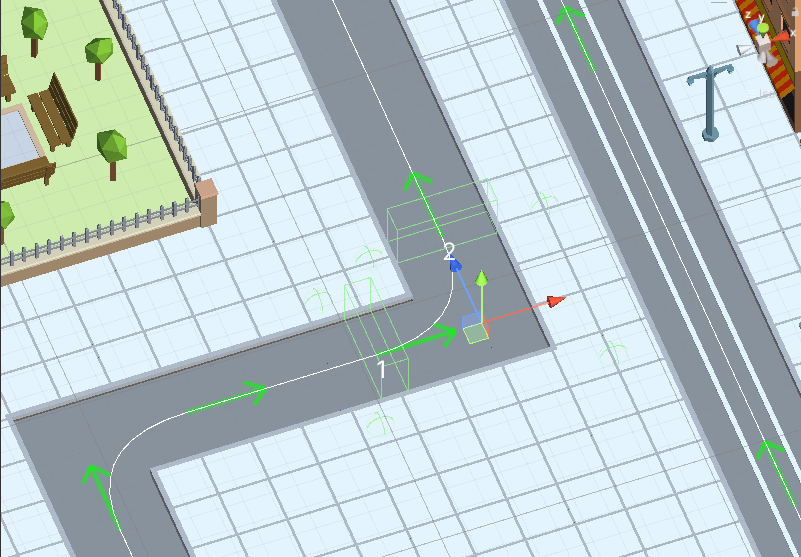
- Node example key features:
- Node 1:
Is one way [enabled]
Source path is in the : [Lanes]
External Lanes [Always empty]
- Node 2:
Is one way [enabled]
Is end one way [enabled]
Source path is in the : [External Lanes]
Lanes [Always empty]
Direction Connection Info
Rightside Lanes
Rightside lanes (default lanes) connect TrafficNodes within a RoadSegment.
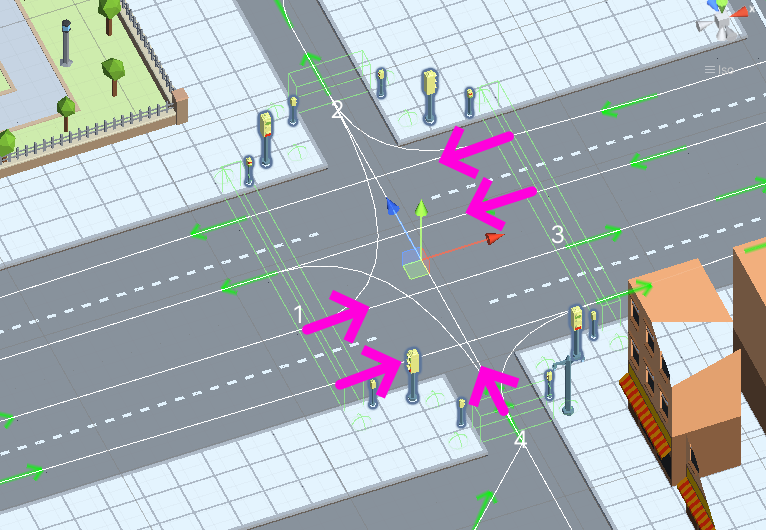
Rightside lanes example.
Leftside Lanes
Leftside lanes (external lanes) connect TrafficNodes in external RoadSegments (external connection example).
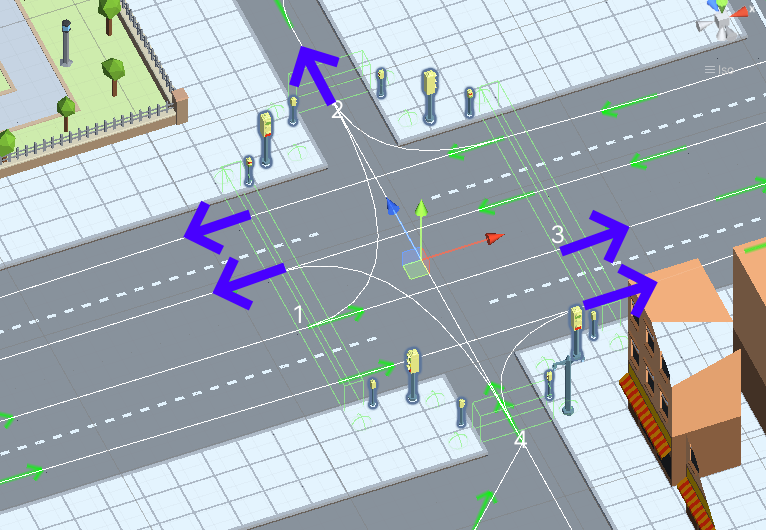
Leftside lanes example.
Warning
Intersecting External paths should be replaced by a separate segment to bake the intersection of the paths.
Node Rotation
Direction of each TrafficNode must be opposite to the center of the segment

- Example description:
The arrow represents the forward rotation of the node.
Purple arrows the direction of the outer nodes of the segment.
Blue arrows the direction of the internal segment oneway nodes.
Auto-path Connection
To quickly create connections between RoadSegments on the same line, the Auto-Path connection is used.
If the segments are not on the same line you should to create another Custom straight road segment or Custom segment between them and do the same connection.
You can also manually create paths between segments using the PathCreator tool.
How To Use
To activate auto-connection paths for all nodes you can in RoadParent by pressing Connect button.
Each time you create a new RoadSegment or move an existing RoadSegment, press Reset and press Connect in RoadParent, then Bake Path Data (baking info).
Note
To prevent auto-path connection for the selected TrafficNode enable Lock path auto creation in the settings of the node.
Each TrafficNode has a box collider whose is size calculated based on the number of lanes, their width, and the type of lanes (one-way or not).
Make sure that the direction of the node is set correctly.
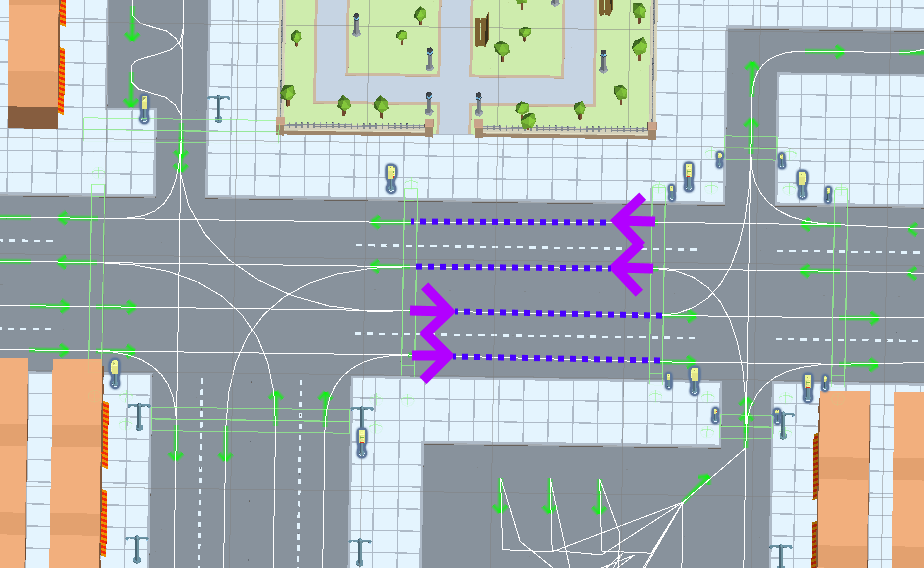
Auto path connection example.
CullState Info
States
Culled : entity not available for spawning.
CloseToCamera : entity available for spawn.
InVisionOfCamera : entity available for spawn only during the initial scene start.