Installation
Traffic Road Installation
Create initial scene objects.
Create the required RoadSegments. And add them as children to the RoadParent.
Create the necessary paths.
Configure the paths.
Adjust the Traffic lights.
Create the Traffic Areas [optional step].
Create the Public Routes [optional step].
Open the Road Parent.
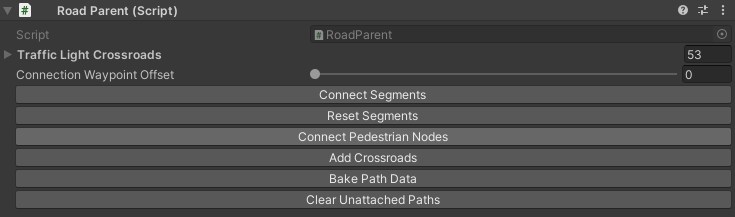
Press Reset button to reset the automatically created paths.
Press Connect button to connect segments (make sure all segments are on one line).
Press the Bake button (bake info).
Create the subscene (one-time procedure).
Entity Subscene Creation
From DOTS 1.0 onwards, all entity conversions must be done using subscenes. It’s necessary to create a separate subscene for roads.
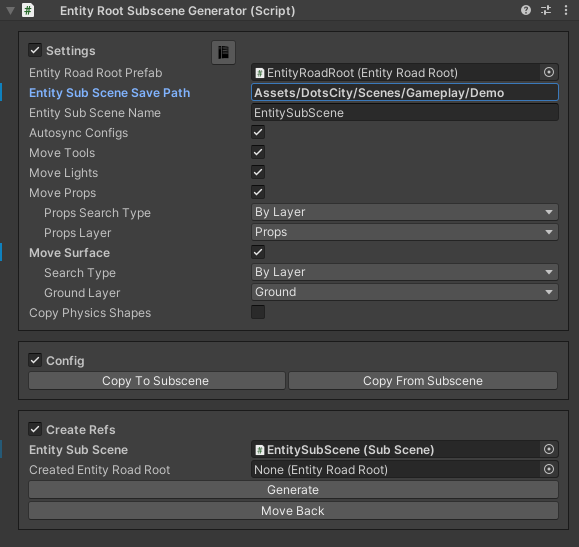
- Steps:
Select Hub in the scene.
Select Entity subscene path the path to create a subscene.
Enter the Entity subscene name or use the default name.
On/off autosync configs (before migrating the configs to the subscene, they will be synchronized with the configs that are in the Hub).
On/off copy physics shapes feature (read more about physics shape transferring) [optional].
Press the Generate button.
All created RoadSegments will automatically be moved to the subscene.